Import users from a CSV file in Bold Reports®
Bold Reports® On-Premises Edition lets you add a large number of users at once from a CSV file. Download the CSV template file, add the users to it, and then import the file.
How do I open the user management page?
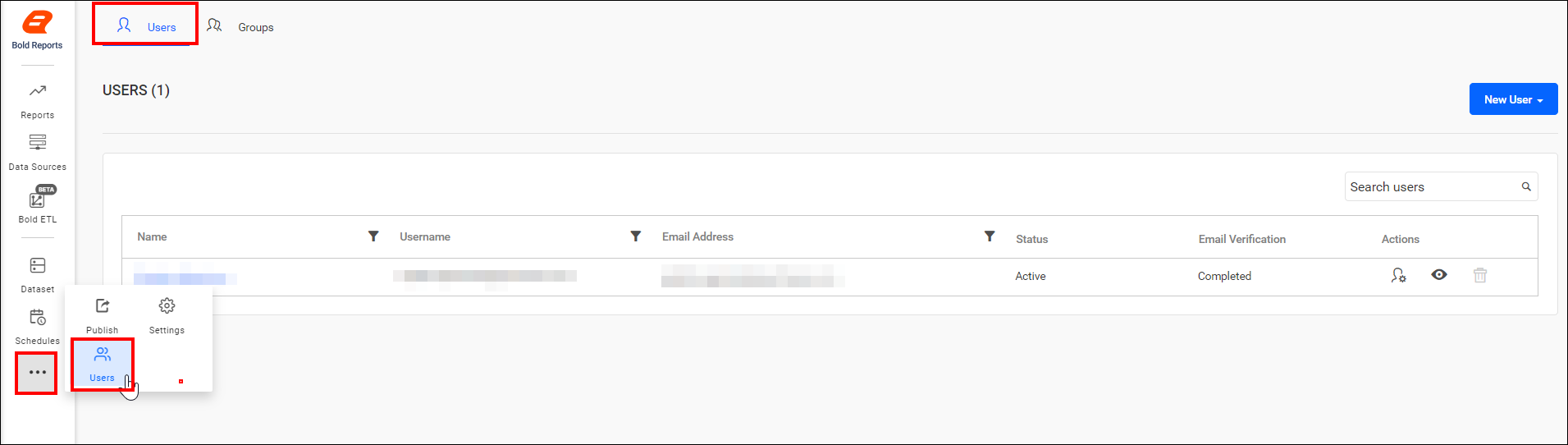
You open the Bold Reports® user management page by clicking the User menu.
Add users from the CSV file
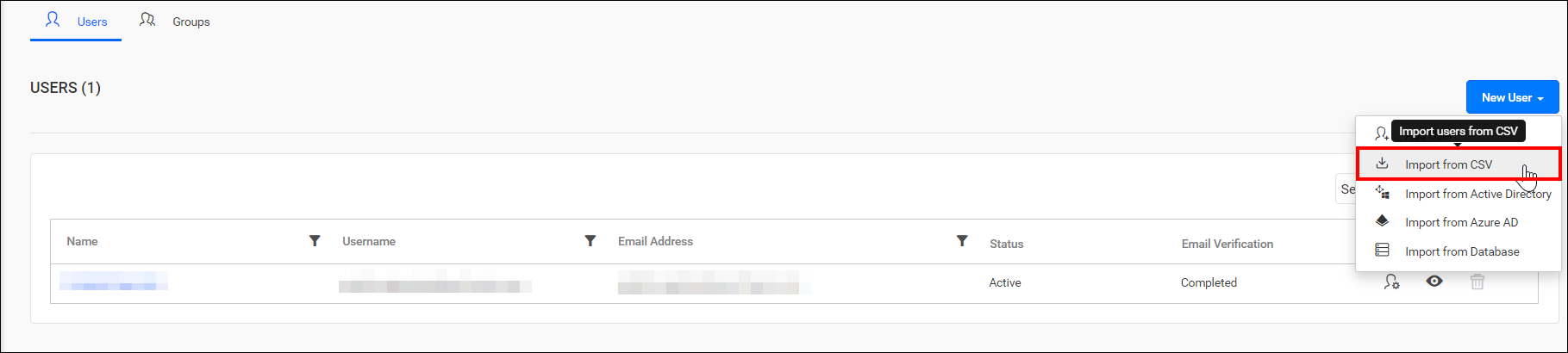
To start a CSV import in Bold Reports®, click Import from csv in New User.
What are the CSV template requirements?
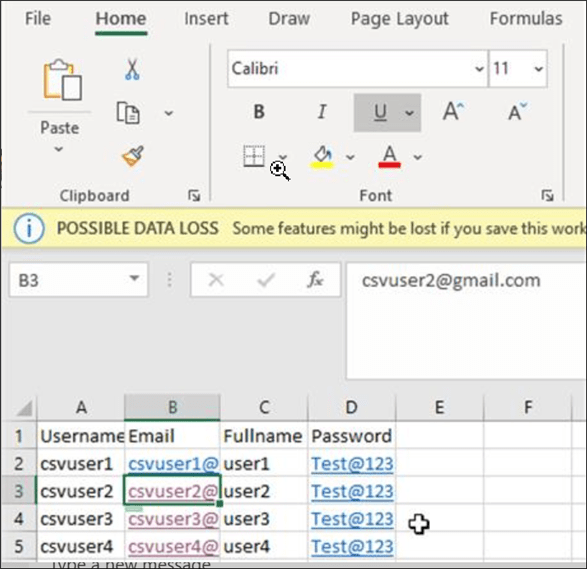
The first row in the Bold Reports® CSV template represents the column heading. Bold Reports® assumes that the data starting from the second line in the file represents the user information.
The following columns are mandatory in the downloaded CSV file:
- Username
- Email address (It is mandatory only in the Email required mode).
- Full Name
- Password (It is mandatory only in the Automatic activation mode).
How do I import users with the CSV template?
Follow these steps to add users to Bold Reports® using the CSV template:
-
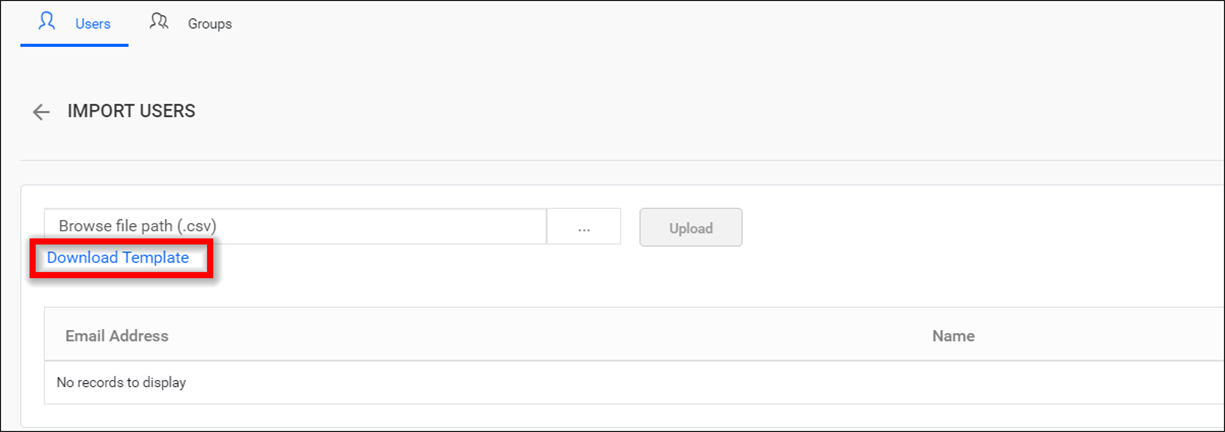
Download a CSV template.
-
Add users in the CSV file.
-
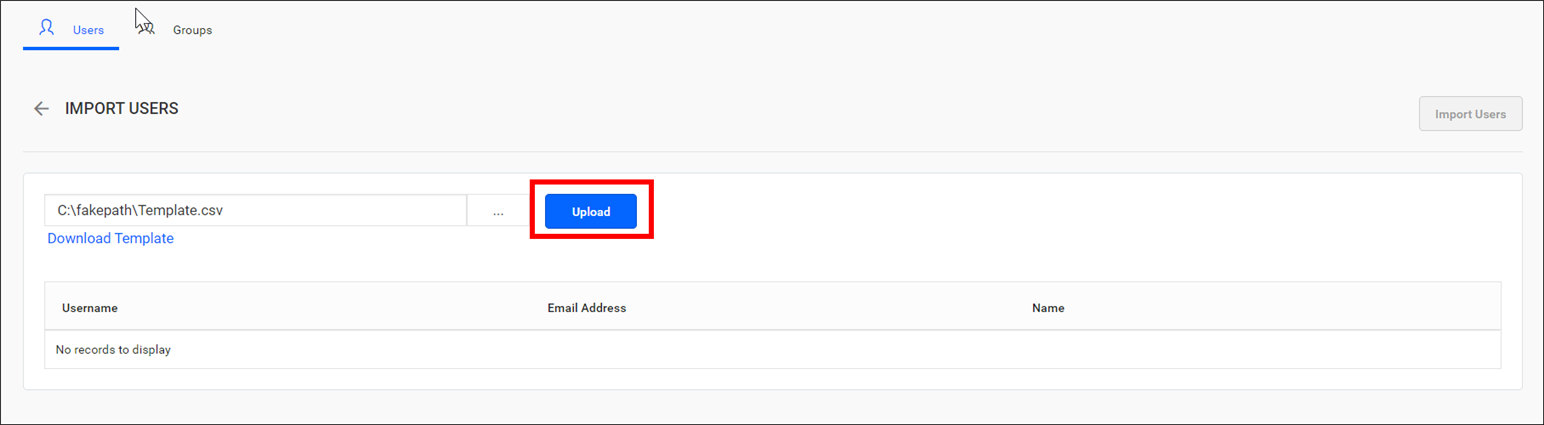
Save the CSV file and upload it.
-
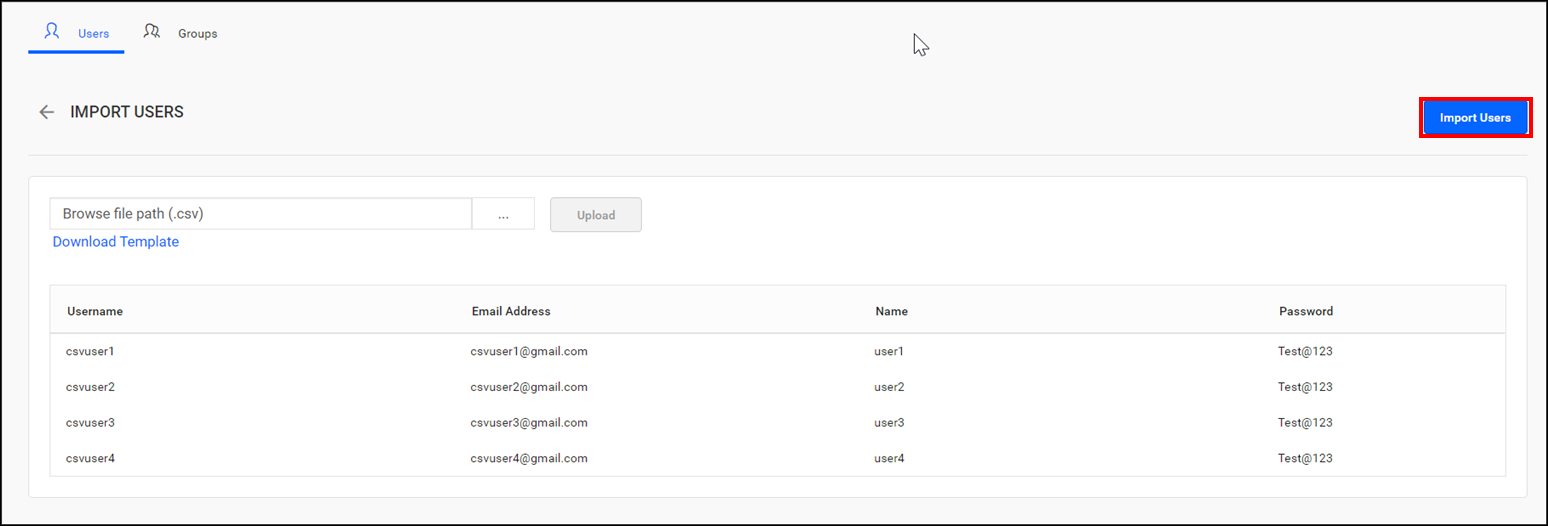
Review the user details. Once the file is uploaded, the user details are displayed in the grid, as shown in the image below.
-
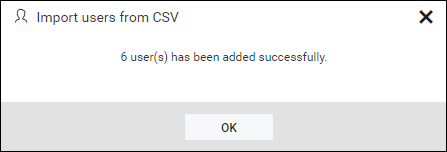
Import the users. After importing users in Bold Reports®, the success message is displayed:
Frequently asked questions
Is the email address always required in the CSV file?
No. The email address is mandatory only in the Bold Reports® Email required mode.
When is the password column required?
The password column is mandatory only in the Bold Reports® Automatic activation mode.