Deploy Bold Reports® on Docker Single Container
Recommended for production sites, in the Bold Reports® Production Image you can store the application data on your host machine to make the Bold Reports® container a stateful application. The Bold Reports® application will read and write the data on your host machine. Follow the below steps to deploy the Bold Reports® Production Image.
-
Download the Docker Compose file by using the following command.
curl -o docker-compose.yml "https://raw.githubusercontent.com/boldreports/bold-reports-docker/refs/heads/master/deploy/single-container/docker-compose.yml" -
Allocate a directory in your host machine to store the shared folders for applications’ usage. Replace the directory path with
<host_path_boldreports_data>and<host_path_db_data>in docker-compose.yml file.For example,
Windows:device: 'D:/boldreports/boldreports_data'anddevice: 'D:/boldreports/db_data'
Linux:device: '/var/boldreports/boldreports_data'anddevice: '/var/boldreports/db_data'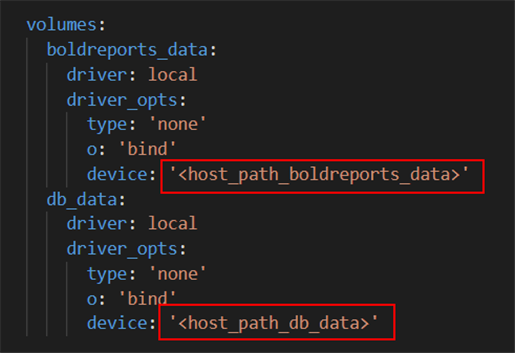
Note: The docker volumes boldreports_data and db_data persists data of Bold Reports® and PostgreSQL respectively. Learn more about docker volumes
-
Run the command below. This command will start the Bold Reports® and Postgres SQL containers and display the Bold Reports® logs to provide information about the installation status of the Bold Reports® application.
docker-compose up -d; docker-compose logs -f boldreports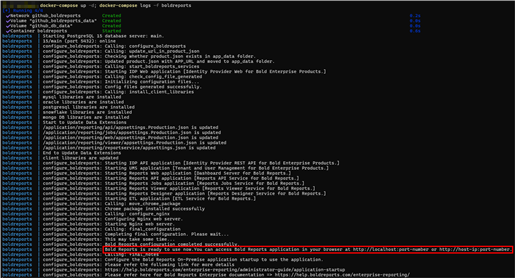
Note: To use the PostgreSQL server deployed with Bold Reports® using the
docker-compose.yamlfile, please usepgdbas the host name of the PostgreSQL server. -
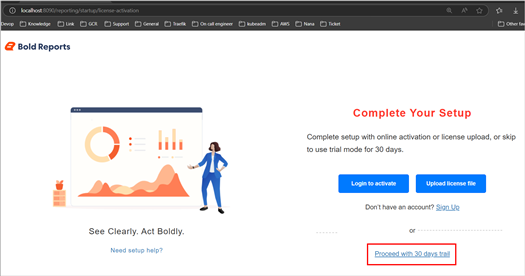
Now, access the Bold Reports® application by entering the URL as
http://localhost:8090orhttp://host-ip:8090in the browser. When opening this URL in the browser, it will display the License page within a few seconds.Note: The default port number mentioned in the compose file is 8090. If you are making changes to the port number, then you need to use that port number for accessing the Bold Reports® application.
Note: Don’t use
http://127.0.0.1withportto access the application.
Shutdown and cleanup
The command docker-compose down removes the containers and default network, but preserves the volumes of Bold Reports® and PostgreSQL.
The command docker-compose down —volumes removes the containers, default network, and all the volumes.