Upgrade Bold Reports® Enterprise Reporting version from 3.x to v5.4.30
-
Bold Reports® releases several major versions in a year. Each version includes new features, bug fixes, and other improvements.
-
You can refer to the features and enhancements in the Release Notes.
-
To upgrade the Bold Reports® Azure App Service to the latest version, you must have access rights to edit the Bold Reports® Server App Service.
Follow these steps below to upgrade the Bold Reports® Azure App service version from 3.x to the latest.
- Login to the Azure portal.
- Select
App Servicesin Microsoft Azure Services.
- Select
Bold Reports Azure App Service. - In the
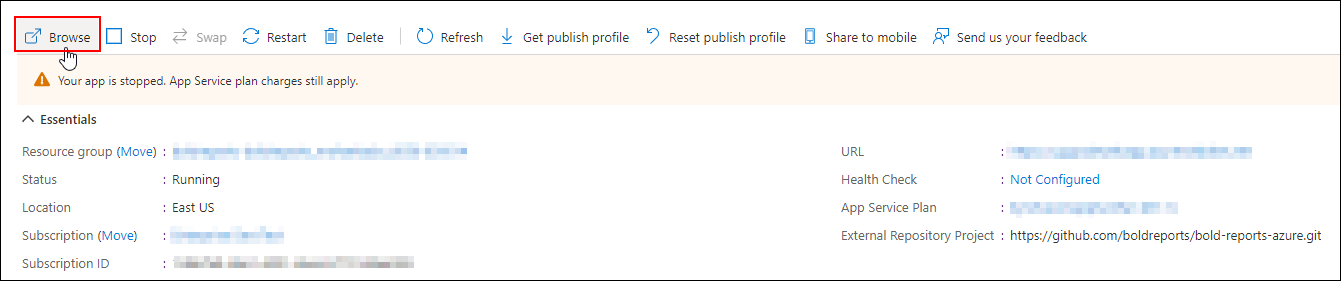
Overviewsection, click theStopbutton.
- Select
Deployment Centerin the left panel of the Bold Reports® App Service.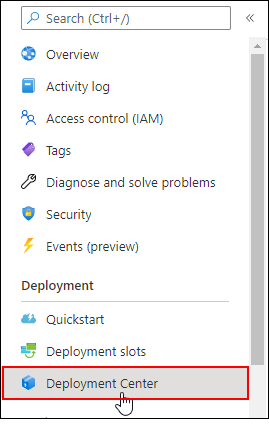
- Once the deployment center is clicked, click
Disconnect. Now the deployment panel will open.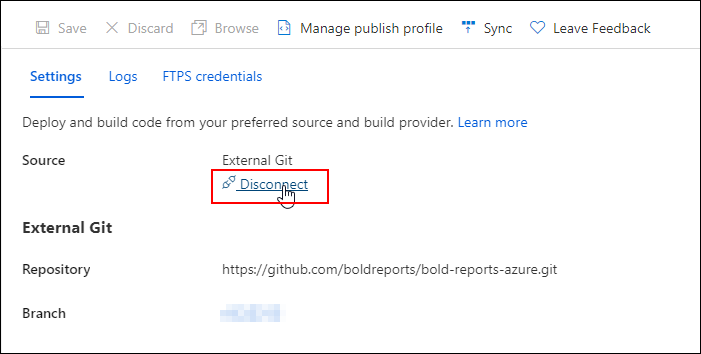
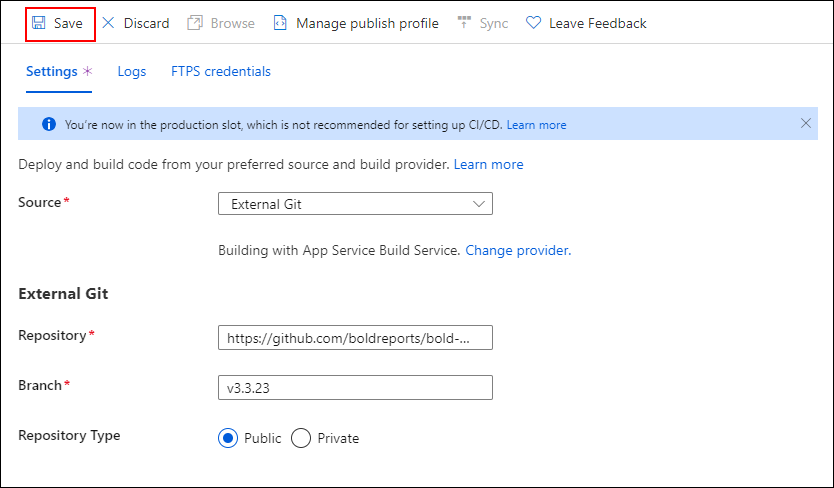
- Choose the
External Git.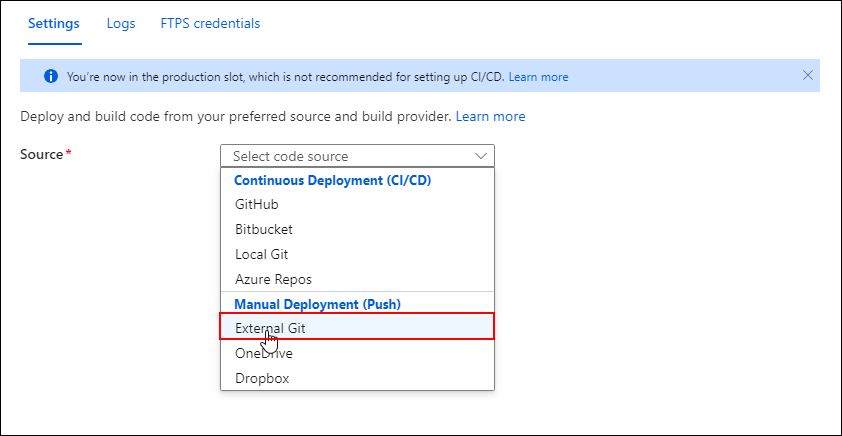
- Now, fill in the below details in the
Settingstab and click theSave.- Repository:
https://github.com/boldreports/bold-reports-azure.git - Branch:
v{release-version} - Repository Type:
Public
- Repository:
- The
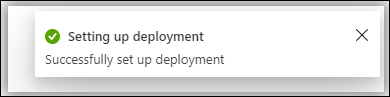
Successfully set up deploymentnotification will be displayed.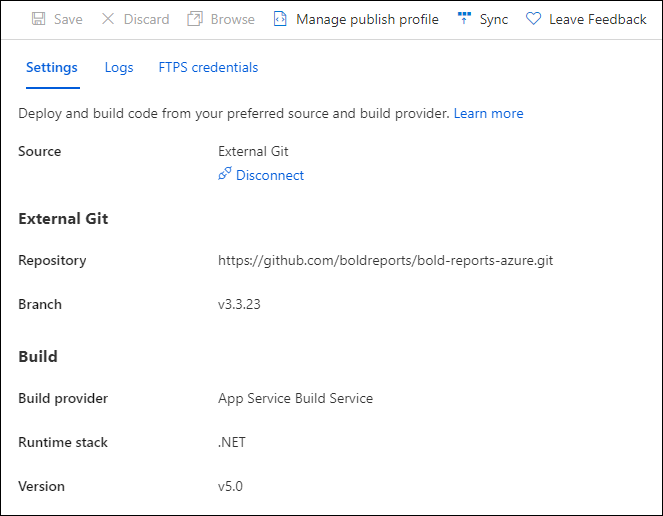
- Select the
Syncbutton on the deployment center page.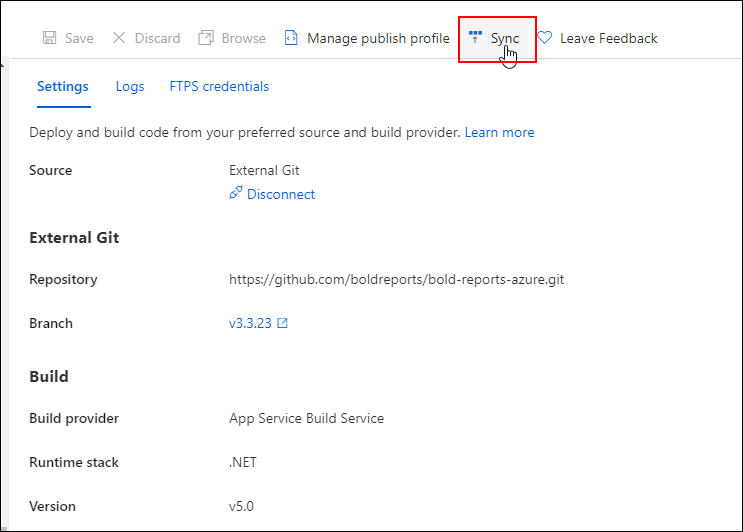
- The synchronization request submitted will be shown in the notification, and synchronization progress will be shown in the deployment center page.
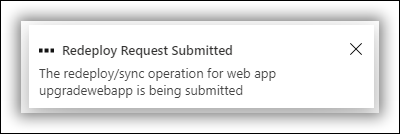
- Please wait until synchronization is completed.
-
Breaking Changes: This step is applicable only for upgrading Azure App Service from version 3.x to latest. Otherwise, skip this step.
-
In the
Configurationsection, change the below value inGeneral Settings.Settings Value .NET version .NET 6 (LTS) 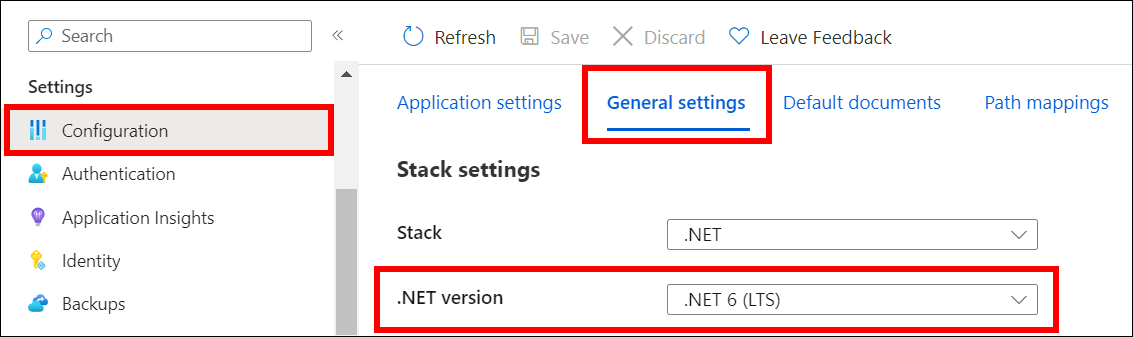
-
Add the below Physical Path in
Path MappingsandSavethe settings.Virtual Path Physical Path /reporting/viewer site\wwwroot\reporting\viewer 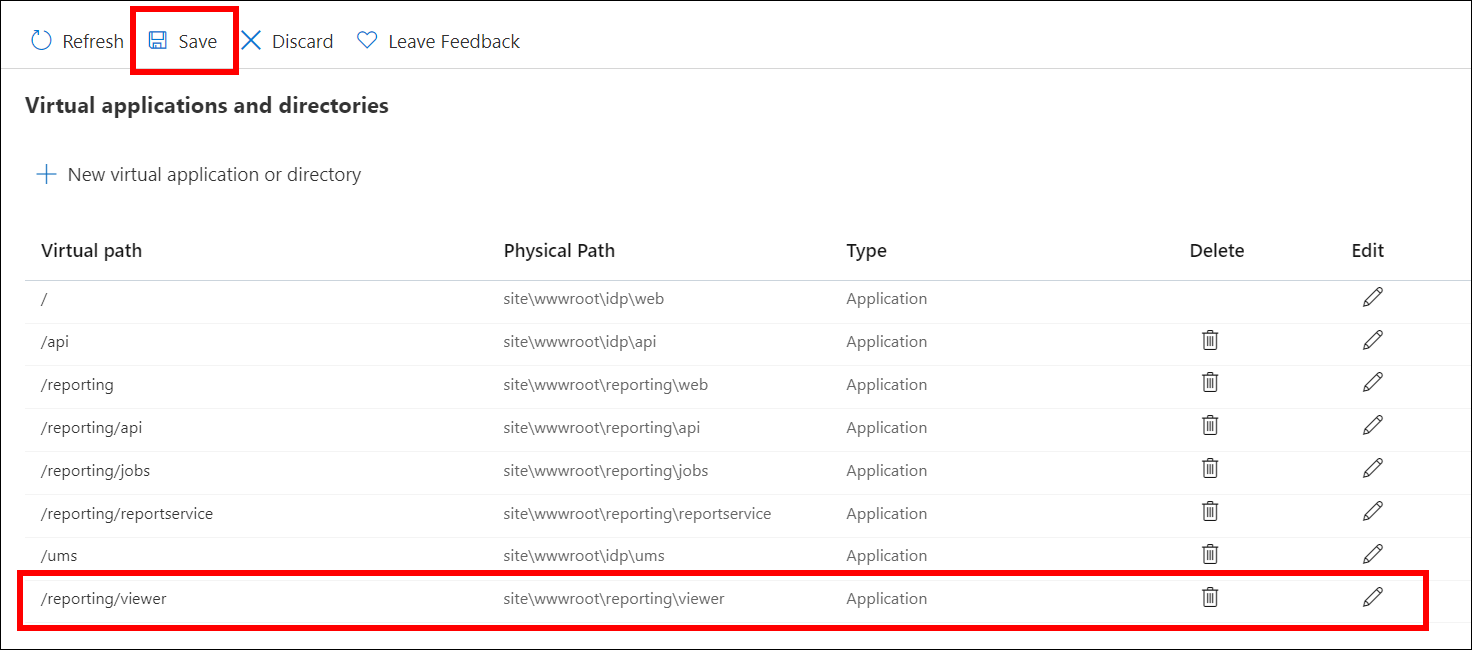
-
- Start the Bold Reports® Azure App Service by clicking the
Startbutton in the Overview section.
- Now, we have completed the Bold Reports® upgrade process. Launch Bold Reports® by clicking the
Browseoption or type in the Bold Reports® URL in the browser.