Add Web Report Viewer with Typescript React application
This section explains the steps required to add a web Report Viewer to a React Typescript application.
To get start quickly with Report Viewer, you can check on this video:
Prerequisites
Before getting started with a bold web report viewer, make sure your development environment includes the following.
Install the Create React App Package
Create React App is a simple way to create a single-page React application which provides a build setup with no configuration. To install the Create React App globally on your machine, run the following command in Command Prompt.
npm install create-react-app -gTo learn more about Create React App package, refer here.
Create a new React Typescript Application
To create a new React typescript application, run the below command in the Command Prompt.
create-react-app reports --template typescriptThe
create-react-appcommand adds thereact,react-dom,react-scripts, and other dependencies required to your react typescript application.
Install Create React Class
To configure the Report Viewer component, change the directory to your application�s root folder.
cd reportsTo install the type definitions for create-react-class run the following command in the Command Prompt.
npm install create-react-class --save
npm install @types/create-react-class --save
Install Bold Reports® React package
Run the following commands to install the Bold Reports® React library.
| React version | NPM package installation |
|---|---|
| greater than 16 | npm install @boldreports/react-reporting-components@latest —save-dev |
| 16 or less than 16 (Warning: This version may have compatibility limitations with newer React features.) | npm install @boldreports/[email protected] —save-dev |
Note: Using the latest package with React 16 may cause compilation issues. Make sure to install the correct version to avoid problems.
Install JQuery package
To install the JQuery package run the following command in the Command Prompt.
npm install @types/jquery --saveInstall and Integrate Bold Reports® Typings
Install the Bold Reports® typings by executing the following command.
npm install --save-dev @boldreports/typesIn your tsconfig.json file, add the @bold-reports/types under the typeRoots and include jquery and reports.all in the types array.
    {
      "compilerOptions": {
        ...
        ...
        "typeRoots": [
          "node_modules/@types",
          "node_modules/@boldreports/types"
        ],
        "types": [
          "jquery",
          "reports.all"
        ]
      },
      ...
      ...
    }
Adding Scripts reference
Bold Reports® needs window.jQuery object to render the React components. Hence, create a file named globals.ts in the src folder and import jQuery into the globals.ts file, like in the below code snippet.
import jquery from 'jquery';
import React from 'react';
import createReactClass from 'create-react-class';
import ReactDOM from 'react-dom';

(window as any).React = React;
(window as any).createReactClass = createReactClass;
(window as any).ReactDOM = ReactDOM;
(window as any).$ = (window as any).jQuery = jquery;
Refer to the globals.ts file in the index.tsx file, like in the below code snippet.
import './globals';
import React from 'react';
import ReactDOM from 'react-dom';
import './index.css';
import App from './App';

ReactDOM.render(<App />, document.getElementById('root'));
import './globals';
import React from 'react';
import { createRoot } from 'react-dom/client';
import './index.css';
import App from './App';
import reportWebVitals from './reportWebVitals';
const root = createRoot(document.getElementById('root'));
root.render(
<React.StrictMode>
<App />
</React.StrictMode>
);Adding Report Viewer component
The web Report Viewer script and style files need to be imported in order for the web Report Viewer to run. Hence, import the following files into the App.tsx file.
/* eslint-disable */
import React from 'react';
import './App.css';
//Report Viewer source
import '@boldreports/javascript-reporting-controls/Content/v2.0/tailwind-light/bold.report-viewer.min.css';
import '@boldreports/javascript-reporting-controls/Scripts/v2.0/common/bold.reports.common.min';
import '@boldreports/javascript-reporting-controls/Scripts/v2.0/common/bold.reports.widgets.min';
import '@boldreports/javascript-reporting-controls/Scripts/v2.0/bold.report-viewer.min';
//Reports react base
import '@boldreports/react-reporting-components/Scripts/bold.reports.react.min';
declare let BoldReportViewerComponent: any;

var viewerStyle = {
  'height': '700px',
  'width': '100%'
};

function App() {
  return (
   <div style={viewerStyle}>
   <BoldReportViewerComponent
   id="reportviewer-container">
   </BoldReportViewerComponent>
   </div>
  );
}

export default App;
Create a Web API service
The Web Report Viewer requires a Web API service to process the data and file actions. You can skip this step and use our online Web API services to create, edit, and browse reports or you must create any one of the following Web API services.
If you are looking to load the report directly from the SQL Server Reporting Services (SSRS), then you can skip the following steps and move to the SSRS Report.
Set Web API service URL
To set Web API service, open the app.component.ts file and add the code snippet as in the constructor.
/* eslint-disable */
import React from 'react';
import './App.css';
//Report Viewer source
import '@boldreports/javascript-reporting-controls/Content/v2.0/tailwind-light/bold.report-viewer.min.css';
import '@boldreports/javascript-reporting-controls/Scripts/v2.0/common/bold.reports.common.min';
import '@boldreports/javascript-reporting-controls/Scripts/v2.0/common/bold.reports.widgets.min';
import '@boldreports/javascript-reporting-controls/Scripts/v2.0/bold.report-viewer.min';
//Reports react base
import '@boldreports/react-reporting-components/Scripts/bold.reports.react.min';
declare let BoldReportViewerComponent: any;

var viewerStyle = {
  'height': '700px',
  'width': '100%'
};

function App() {
  return (
   <div style={viewerStyle}>
    <BoldReportViewerComponent
     id="reportviewer-container"
     reportServiceUrl = {'https://demos.boldreports.com/services/api/ReportViewer'}
     reportPath = {'~/Resources/docs/sales-order-detail.rdl'} >
     </BoldReportViewerComponent>
   </div>
  );
}

export default App;
Run the Application
To run the application, run the following command at the command prompt.
npm run startWhile running the above command, if you are getting an error like
'BoldReportViewerComponent' is not definedthen you need to declare theBoldReportViewerComponentby adding the linedeclare let BoldReportViewerComponent: anyafter import section in the App.tsx.
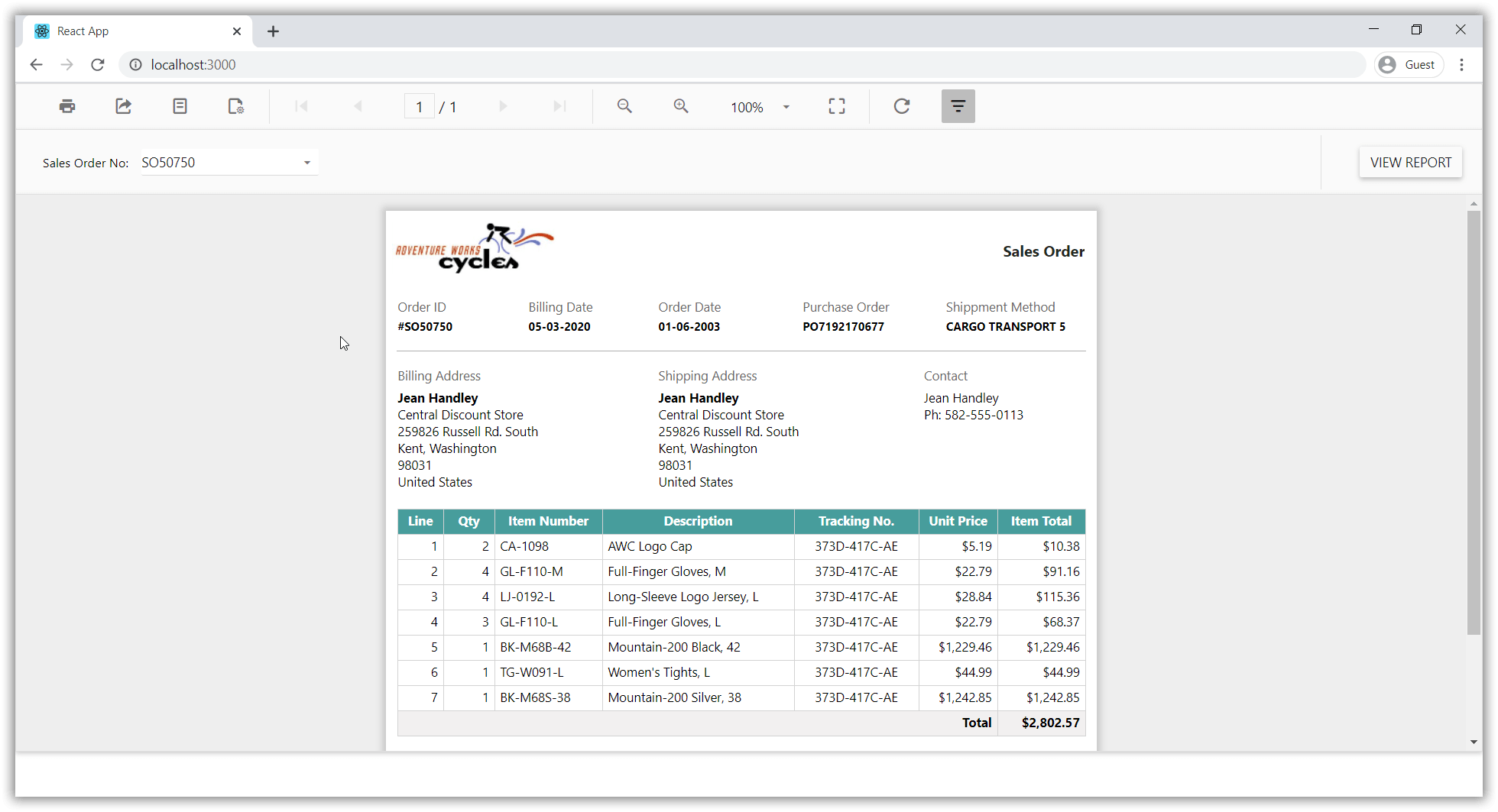
The npm run start command automatically opens your browser to http://localhost:3000/.
Deploying the application in production
To deploy the application in production, we need to generate the build files. Hence to generate the build files, run the below command at the command prompt which will create a folder named build.
npm run build- Prerequisites
- Install the Create React App Package
- Create a new React Typescript Application
- Install Create React Class
- Install Bold Reports React package
- Install JQuery package
- Install and Integrate Bold Reports Typings
- Adding Scripts reference
- Adding Report Viewer component
- Create a Web API service
- Set Web API service URL
- Run the Application
- Deploying the application in production
- Prerequisites
- Install the Create React App Package
- Create a new React Typescript Application
- Install Create React Class
- Install Bold Reports React package
- Install JQuery package
- Install and Integrate Bold Reports Typings
- Adding Scripts reference
- Adding Report Viewer component
- Create a Web API service
- Set Web API service URL
- Run the Application
- Deploying the application in production