Display SSRS RDL report in an ASP.NET Core Razor Pages
To display an already created SSRS RDL report in ASP.NET Core Razor Pages, create a Razor Pages application, add the Bold Reports® ASP.NET Core Report Viewer, and configure a Web API service to process the report. You do not need a Report Server. Follow these step-by-step instructions.
Bold Reports® ASP.NET Core supports from
.NET Core 2.1only. So, choose the .NET Core versionASP.NET Core 2.1or higher versions for Viewer API creation. The source code for this ASP.NET Core Razor Pages application is available on GitHub.
What do I need before using the ASP.NET Core Report Viewer in a Razor Pages app?
Before you use the Bold Reports® ASP.NET Core Report Viewer in an ASP.NET Core Razor Pages app, you need Visual Studio 2022 with the ASP.NET and Web Development workloads and the .NET Core 6.0 Framework.
Before you get started with the Bold Reports® ASP.NET Core Report Viewer, make sure your development environment includes the following requirements.
- Visual Studio 2022 with ASP.NET and Web Development workloads.
- .NET Core 6.0 Framework.
How do I create an ASP.NET Core Razor Pages application for the Report Viewer?
To create an ASP.NET Core Razor Pages application for the Bold Reports® ASP.NET Core Report Viewer, start Visual Studio 2022, create a new ASP.NET Core Web App project, and choose the .NET 6.0 framework.
- Start Visual Studio 2022 and click Create new project.
- Choose ASP.NET Core Web App, and then click Next.

- Change the project name, and then click Next.
- In the dropdown for the Framework, choose .NET 6.0, then click Create.

List of dependency libraries
- In the Solution Explorer tab, right-click the project or solution, and choose Manage NuGet Packages. Alternatively, select the Tools > NuGet Package Manager > Manage NuGet Packages for Solution menu command.
- Search for
BoldReports.AspNet.Core,BoldReports.Net.Corepackages, and install them into your ASP.NET Core application. The following table provides details about the packages and their usage.
| Package | Purpose |
|---|---|
BoldReports.Net.Core |
Creates Web API service is used to process the reports. |
BoldReports.AspNet.Core |
Contains tag helpers to create a client-side reporting control. |
Refer to the NuGet Packages section to learn more details about installing and configuring Report Viewer NuGet packages.
The following table provides details about the dependency packages and their usage.
| Package | Purpose |
|---|---|
Syncfusion.Compression.Net.Core |
Exports the report to a PDF, Microsoft Word, and Microsoft Excel format. It is a base library for the Syncfusion.Pdf.Net.Core, Syncfusion.DocIO.Net.Core, and Syncfusion.XlsIO.Net.Core packages. |
Syncfusion.Pdf.Net.Core |
Exports the report to a PDF. |
Syncfusion.DocIO.Net.Core |
Exports the report to a Word. |
Syncfusion.XlsIO.Net.Core |
Exports the report to an Excel. |
Syncfusion.OfficeChart.Net.Core |
It is a base library of the Syncfusion.XlsIO.Net.Core package. |
Newtonsoft.Json |
Serializes and deserializes data for the Report Viewer. It is a mandatory package for the Report Viewer, and the package version should be 10.0.1 or higher. |
Refer scripts and CSS
Refer all the scripts and style sheets that the ASP.NET Core Report Viewer requires directly from the CDN links.
-
The following scripts and style sheets are mandatorily required to use the Report Viewer.
bold.report-viewer.min.cssjquery.min.jsbold.reports.common.min.jsbold.reports.widgets.min.jsbold.report-viewer.min.js
-
Open the
\Pages\Shared\_Layout.cshtmlpage. -
Replace the following code in your
\Pages\Shared\_Layout.cshtmlpage<head>tag.<!-- Report Viewer component styles --> <link href="https://cdn.boldreports.com/15.1.10/content/v2.0/tailwind-light/bold.report-viewer.min.css" rel="stylesheet" /> <!-- Report Viewer component dependent script --> <script src="https://cdnjs.cloudflare.com/ajax/libs/jquery/3.6.0/jquery.min.js"></script> <script src="https://cdn.boldreports.com/15.1.10/scripts/v2.0/common/bold.reports.common.min.js"></script> <script src="https://cdn.boldreports.com/15.1.10/scripts/v2.0/common/bold.reports.widgets.min.js"></script> <!-- Report Viewer component script --> <script src="https://cdn.boldreports.com/15.1.10/scripts/v2.0/bold.report-viewer.min.js"></script>To learn more about rendering a report with data visualization report items, refer to the how to render data visualization report items section. The Report Viewer scripts and styles can be added into your application by installing the
BoldReports.JavaScriptNuGet package.
Tag helper
Define the following tag helper within the _ViewImports.cshtml page to initialize the ASP.NET Core Report Viewer component with tag helper support.
    @using BoldReports.TagHelpers
    @addTagHelper *, BoldReports.AspNet.Core
Configure Script Manager
Open the ~/Pages/Shared/_Layout.cshtml page and add the Bold Reports® Script Manager at the end of the <body> element as in the following code sample.
<body>
    <div>
        @RenderBody()
    </div>

    @RenderSection("Scripts", required: false)
    <!-- Bold Reports<sup>®</sup> script manager -->
   <bold-script-manager></bold-script-manager>
</body>
Initialize Report Viewer
- Open the
Index.cshtmlpage. - Remove the existing code and add the following code:
    <div style="min-height: 950px;width: 100%;">
        <bold-report-viewer id="viewer"></bold-report-viewer>
    </div>
Add already created reports
- Create a folder
Resourcesinto thewwwrootfolder in your application to store the RDL reports. - Download the
sales-order-detail.rdlsample report. For more sample reports, refer to the samples and demos section. - Extract the compressed file and paste the
sales-order-detail.rdlto theResourcesfolder.
The Report Viewer is only for rendering reports. Refer to the create RDL report section to create a report.
Configure Web API
The ASP.NET Core Report Viewer requires a Web API service to process the RDL, RDLC, and SSRS report files.
Add Web API Controller
-
Right-click the project and select Add > New Item from the context menu.
-
In the Add New Item dialog, select API Controller - Empty class and name it as
ReportViewerController.cs.
-
Click Add.
When you add the API Controller class, the suffix
Controlleris mandatory in its name. -
Open the
ReportViewerControllerand add the following using statement.using Microsoft.AspNetCore.Mvc; using System.IO; using BoldReports.Web.ReportViewer; -
Inherit the
IReportControllerinterface, and then implement its methods.The interface is required for processing the reports and for handling requests from the Report Viewer.
-
Create local variables inside the
ReportViewerControllerclass.//Report Viewer requires a memory cache to store the information of consecutive client request and have the rendered report viewer information in server private Microsoft.Extensions.Caching.Memory.IMemoryCache _cache; // IWebHostEnvironment used to get the report stream from application `wwwroot\Resources` folder. private Microsoft.AspNetCore.Hosting.IWebHostEnvironment _hostingEnvironment; -
Load the report as a stream in the
OnInitReportOptionsmethod.[NonAction] public void OnInitReportOptions(ReportViewerOptions reportOption) { string basePath = _hostingEnvironment.WebRootPath; // Here, we have loaded the sales-order-detail.rdl report from application the folder wwwroot\Resources. sales-order-detail.rdl should be there in wwwroot\Resources application folder. FileStream inputStream = new FileStream(basePath + @"\Resources\" + reportOption.ReportModel.ReportPath, FileMode.Open, FileAccess.Read); MemoryStream reportStream = new MemoryStream(); inputStream.CopyTo(reportStream); reportStream.Position = 0; inputStream.Close(); reportOption.ReportModel.Stream = reportStream; }You cannot load the report stored in the application with path information in an ASP.NET Core service.
-
Set the
Routeattribute for theReportViewerController.[Route("api/[controller]/[action]")] public class ReportViewerController : Controller, IReportController { ... } -
Replace the template code with the following code:
[Route("api/[controller]/[action]")]
public class ReportViewerController : Controller, IReportController
{
    // Report viewer requires a memory cache to store the information of consecutive client request and
    // have the rendered Report Viewer information in server.
    private Microsoft.Extensions.Caching.Memory.IMemoryCache _cache;

    // IWebHostEnvironment used with sample to get the application data from wwwroot.
    private Microsoft.AspNetCore.Hosting.IWebHostEnvironment _hostingEnvironment;

    // Post action to process the report from server based json parameters and send the result back to the client.
    public ReportViewerController(Microsoft.Extensions.Caching.Memory.IMemoryCache memoryCache,
        Microsoft.AspNetCore.Hosting.IWebHostEnvironment hostingEnvironment)
    {
        _cache = memoryCache;
        _hostingEnvironment = hostingEnvironment;
    }

    // Post action to process the report from server based json parameters and send the result back to the client.
    [HttpPost]
    public object PostReportAction([FromBody] Dictionary<string, object> jsonArray)
    {
        //Contains helper methods that help to process a Post or Get request from the Report Viewer control and return the response to the Report Viewer control
        return ReportHelper.ProcessReport(jsonArray, this, this._cache);
    }

    // Method will be called to initialize the report information to load the report with ReportHelper for processing.
    [NonAction]
    public void OnInitReportOptions(ReportViewerOptions reportOption)
    {
        string basePath = _hostingEnvironment.WebRootPath;
        // Here, we have loaded the sales-order-detail.rdl report from application the folder wwwroot\Resources. sales-order-detail.rdl should be there in wwwroot\Resources application folder.
        FileStream inputStream = new FileStream(basePath + @"\Resources\" + reportOption.ReportModel.ReportPath, FileMode.Open, FileAccess.Read);
        MemoryStream reportStream = new MemoryStream();
        inputStream.CopyTo(reportStream);
        reportStream.Position = 0;
        inputStream.Close();
        reportOption.ReportModel.Stream = reportStream;
    }

    // Method will be called when reported is loaded with internally to start to layout process with ReportHelper.
    [NonAction]
    public void OnReportLoaded(ReportViewerOptions reportOption)
    {
    }

    //Get action for getting resources from the report
    [ActionName("GetResource")]
    [AcceptVerbs("GET")]
    // Method will be called from Report Viewer client to get the image src for Image report item.
    public object GetResource(ReportResource resource)
    {
        return ReportHelper.GetResource(resource, this, _cache);
    }

    [HttpPost]
    public object PostFormReportAction()
    {
        return ReportHelper.ProcessReport(null, this, _cache);
    }
}
Web API with ASP.NET Core Web Application
The default ASP.NET Core Razor Pages template (Web Application) does not have the MapControllers configuration to use the Web API. Add the MapControllers option with App by using the following steps:
-
Open
Program.csfile. -
Call
MapControllerswithappafterapp.UseRouting(), as in the following code:.... .... app.UseRouting(); app.UseMvc(); .... ....
Your final Program.cs file looks like the following code:
    var builder = WebApplication.CreateBuilder(args);

    // Add services to the container.
    builder.Services.AddRazorPages();
    var app = builder.Build();

    // Configure the HTTP request pipeline.
    if (!app.Environment.IsDevelopment())
    {
        app.UseExceptionHandler("/Error");
        app.UseHsts();
    }

    app.UseHttpsRedirection();
    app.UseStaticFiles();

    app.UseRouting();
    app.MapControllers();

    app.UseAuthorization();
    app.MapRazorPages();
    app.Run();
To load the report directly from SQL Server Reporting Services (SSRS), skip the following steps and go to the SSRS Report section.
How do I set the report path and service URL for the ASP.NET Core Report Viewer?
To render the reports available in the application, set the report path and service URL properties of the ASP.NET Core Report Viewer. Replace the following code on your Report Viewer page.
- Open the
Index.cshtmlpage. - Set the
report-pathandreport-service-urlproperties as in the following code:
  <div style="min-height: 950px;width: 100%;">
    <bold-report-viewer id="viewer" report-path="sales-order-detail.rdl" report-service-url="/api/ReportViewer"></bold-report-viewer>
  </div>
The report path property is set to the RDL report that is added to the project
Resourcesfolder.
How do I preview the report in the ASP.NET Core Report Viewer?
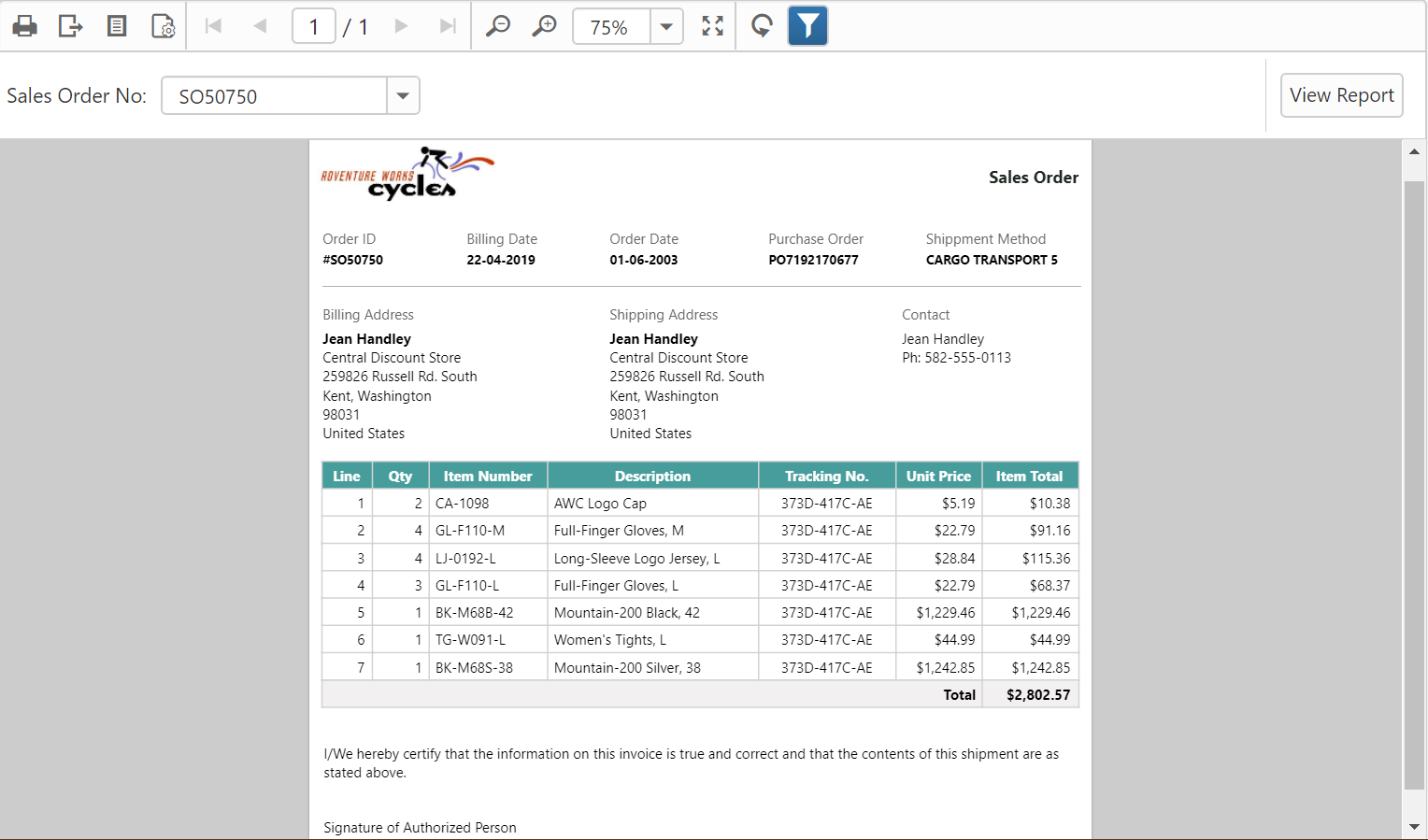
Build and run the application to view the report output in the ASP.NET Core Report Viewer as displayed in the following screenshot:
See Also
Render report with data visualization report items
Set data source credential for shared data sources
Change data source connection string