Design RDL Report with PDF Content
The PDF report item supports embedding PDF content within RDL reports, enabling you to include multi-page documents directly in your report layout. This section describes the steps to add an PDF document via a URL.
Add an PDF report item
-
Drag and drop the PDF report item from the item panel into the design area.
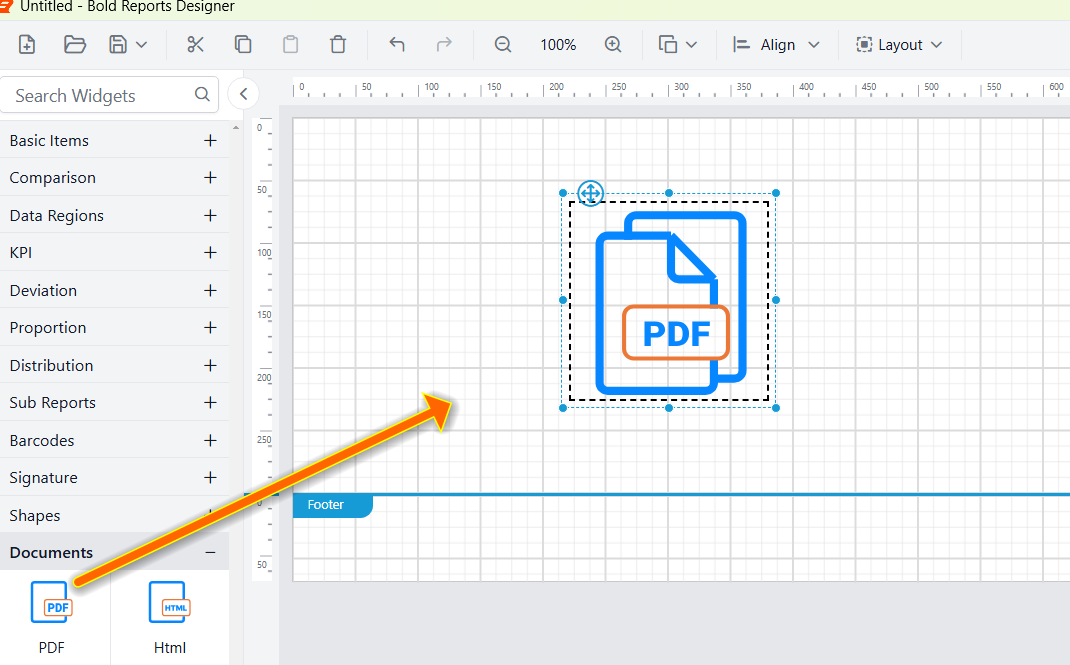
-
After placing the PDF item in the design area, its properties will be displayed in the properties panel.
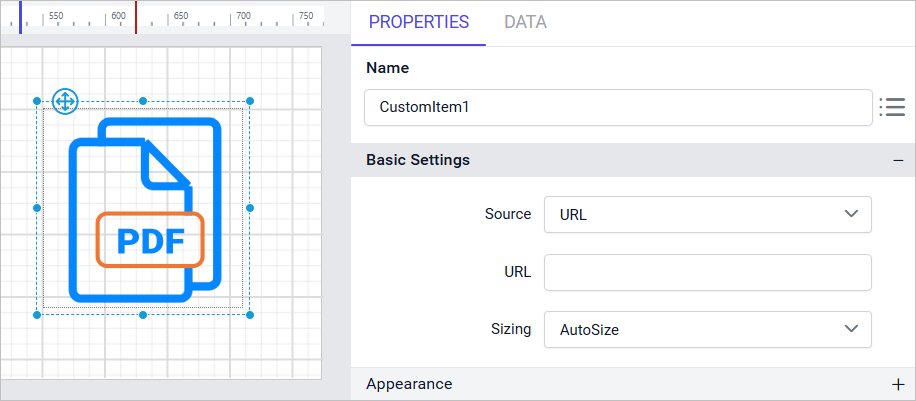
-
Select the source type as
URL.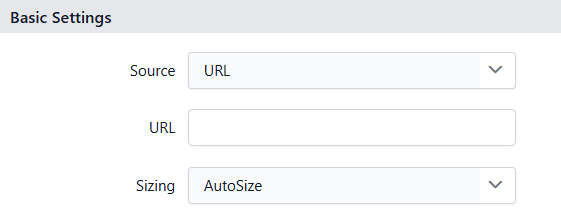
-
In the input box provided, enter the URL of your PDF document using any of the methods described below.
- You can enter a local file path or a publicly accessible web URL pointing to the PDF file as shown below:
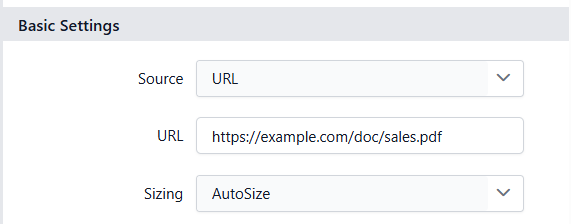
- You can also paste the complete
Base64encoded content of the PDF document as shown below:
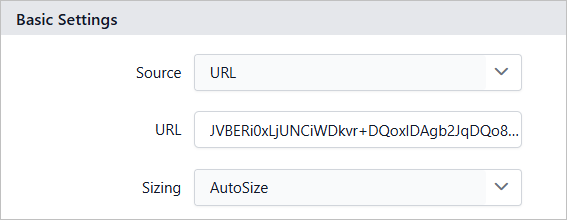
-
Click on the
Previewbutton in the report header.
-
During the report preview, the
Sales order detailsdocument is displayed as shown below.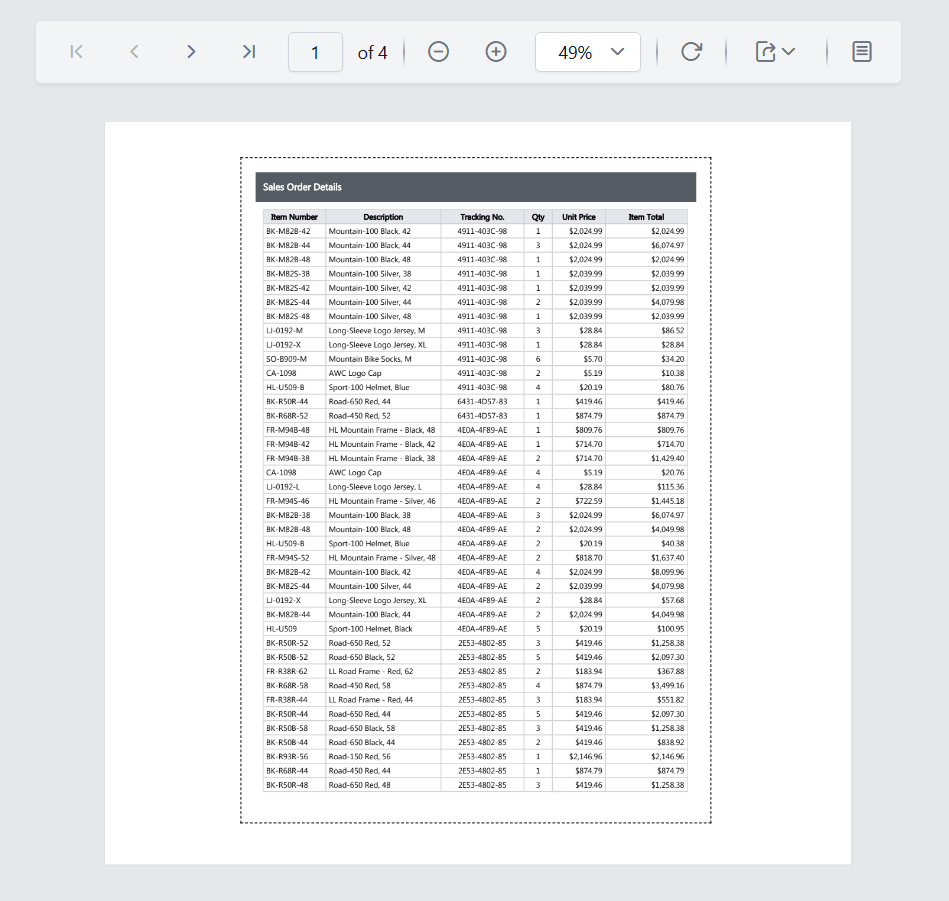
Download the above report design from this link.
Limitations
- PDF custom report item cannot be inserted inside the
headerorfooterof the report. - The size of the PDF document must be less than
100 MB.
Thank you for your feedback and comments.We will rectify this as soon as possible!